Showing posts with label windows. Show all posts

Friday, November 11, 2011

Public Wi-Fi Hotspot

Have you ever gone to a place that offers public wireless internet, only to find out you can't log on to it? You may think that when your computer (or other device) detects a wireless signal, it automatically attaches to it. That simply isn't the case.

What you need to do:

Windows XP

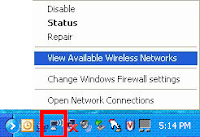
Right-click on the wireless icon in lower right-hand corner. Then you will see 'view available wireless networks' as an option. Select that.
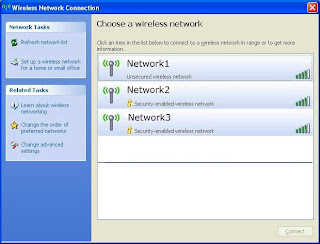


Then, you will see the list of available wireless networks. Most often, the one you will select is the one that is 'Unsecured', or doesn't use a password to connect. Click on that one, then click 'Connect'. You may see a message stating 'This network is unsecured. Connect anyway'? Yes, you do. Also, you may see an option to connect to that one in the future. If you know you will be coming back often, go ahead and save it so that you don't have to select it each time.

After that, depending on what type of firewall software you have installed (you do have some, don't you?), it may also ask you to verify that you want to connect to the wireless network. Finally, you will want to launch your internet browser (Internet Explorer, Firefox, Google Chrome, Opera, or Apple Safari). Many networks require you to agree to their 'Terms and Conditions' before you can reach the World Wide Web. So, if you don't reach the WWW or their page right away, just type google.com or another favorite website in the address bar and hit 'enter'. You should be redirected to their page, if necessary. If not, hit 'Refresh' or the 'F5' key several times until it shows up.

In some cases, firewall software, or malware will stop you from reaching their browser page. In that case, I cannot help you because it's beyond the scope of this lesson.

In the future, I'll try and update this page for Windows 7 procedures.


Saturday, May 09, 2009

Windows 7 RC Initial Impressions


Just like many others, I downloaded and installed the latest Windows 7 Release Candidate. It was installed on a logical partition on our main computer that already has Windows Vista. This isn't advised by professionals though. Professionals advise that you install it on a computer that's not your primary usage system.


I confess that I've only been using Windows 7 for about 3 days, so I cannot attest to the long-term stability of the OS. So far, my impression of Windows 7 is very favorable though. It isn't quite the resource hog as Windows Vista can be. For example, this computer has only a Pentium 4 2.6GHz processor with 1GB of RAM. It had several browser windows open, running the Rhapsody software, Avast anti-virus software, with iTunes scanning my music library. With Windows Vista, all of those tasks running at the same time would render this PC inoperable for anything else. However, with Windows 7, this PC was completely usable and using only about 70% of CPU.

With Windows Vista, you get a multitude of nag messages anytime you try to change settings or install any program. There are ways to shut-off UAC (user account control) in Vista, but it's an all-on or all-off thing. There is no 'in-between' setting. However, Windows 7 allows you to set the degree of annoyance. There are for different settings for UAC ranging from 'never notify', to 'always notify'.

I especially like the way that Windows 7 shows different windows you have open. When I hover over the Internet Explorer icon on the taskbar, it shows the different windows that are opened side-by-side.

After I have had a chance to use this seemingly improved OS for several weeks, I'll be sure to post a follow-up to my initial impressions. We can only hope that Microsoft got it right this time with Windows 7.